

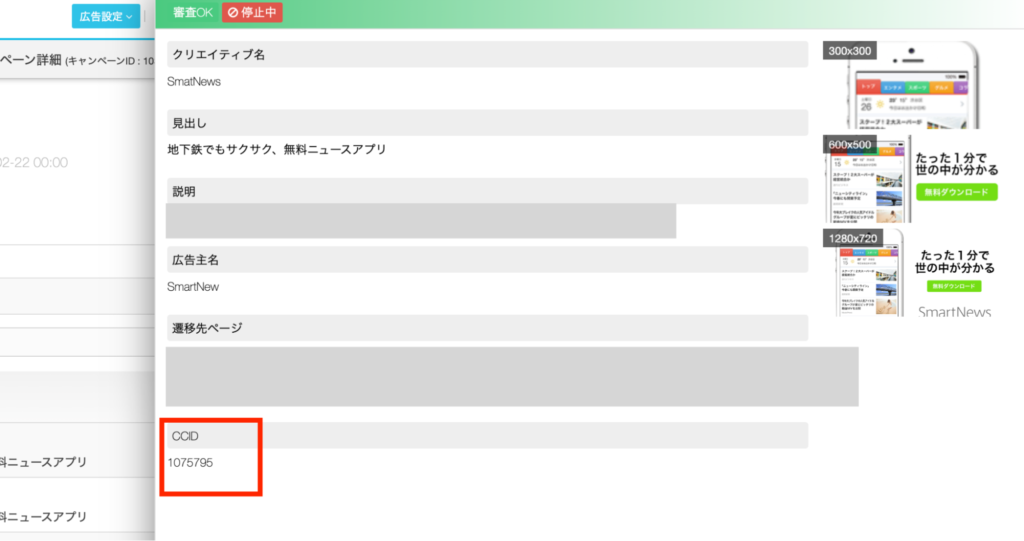
You can view Campaign Creative IDs (CCID) on the creative details page on the admin console. This ID is needed for inquiries regarding creatives.
Viewing Your Settings
Campaign settings can be viewed from both “Campaign Settings” and the Ads Manager βeta.
CCID can also be viewed from the campaign settings page on the admin console, or on the CSV data downloaded from Ads Manager βeta.
Campaign Settings
TOP page >キャンペーン設定 > キャンペーン一覧 > キャンペーン詳細 > クリエイティブ一覧 > クリエイティブ詳細
1
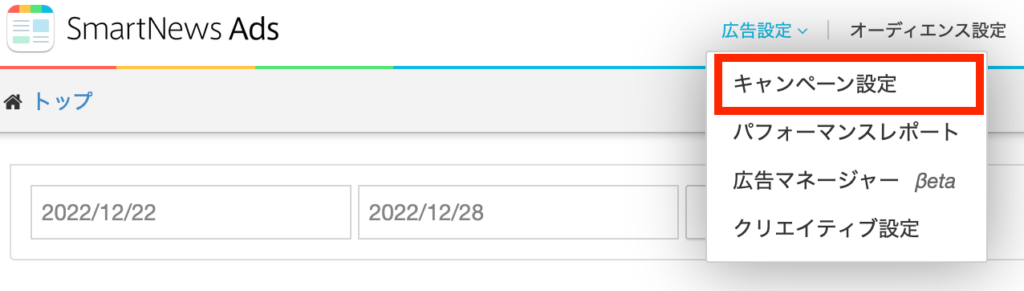
From the top menu, click [広告設定] (Ad Settings) and choose [キャンペーン設定] (Campaign Settings)
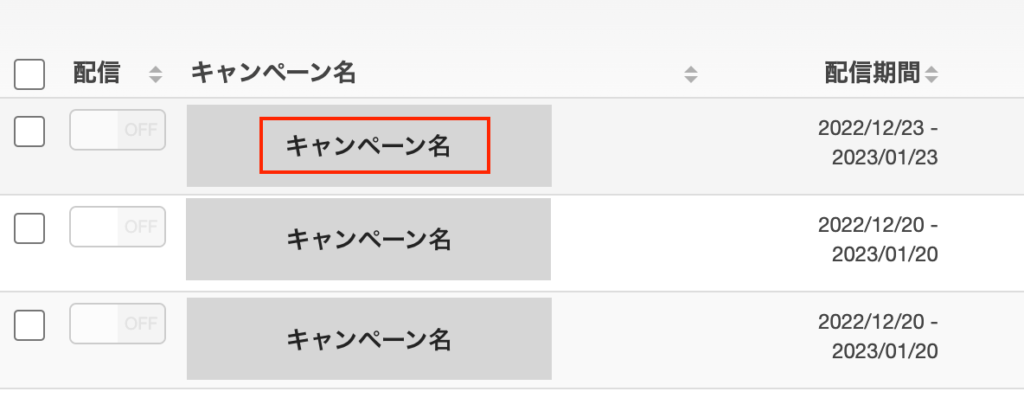
2Select the campaign whose CCID you want to check from the campaign list.
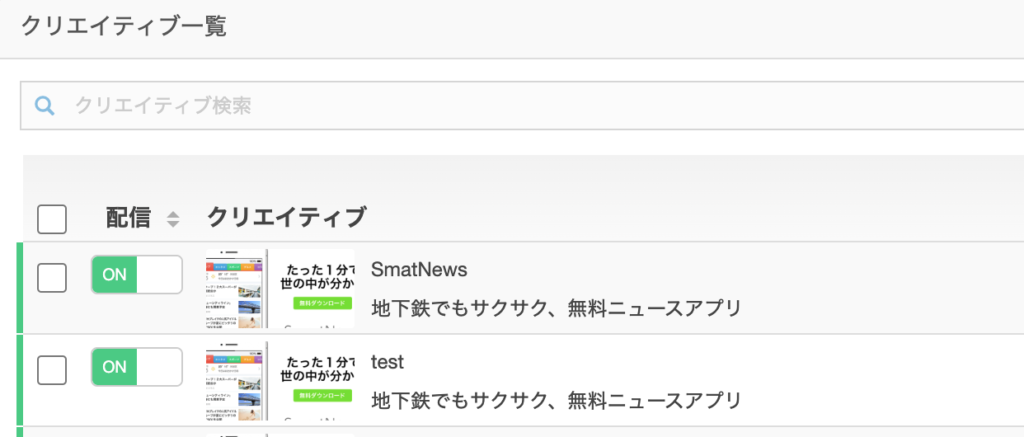
3Select the desired creative from the creative list on the campaign details screen.
4 Upon selecting the desired creative, you can view the Campaign Creative ID (CCID) on the creative details page.
Ads Manager βeta
TOP page > 広告設定 > 広告マネージャーβeta > キャンペーン一覧 > キャンペーン詳細
1
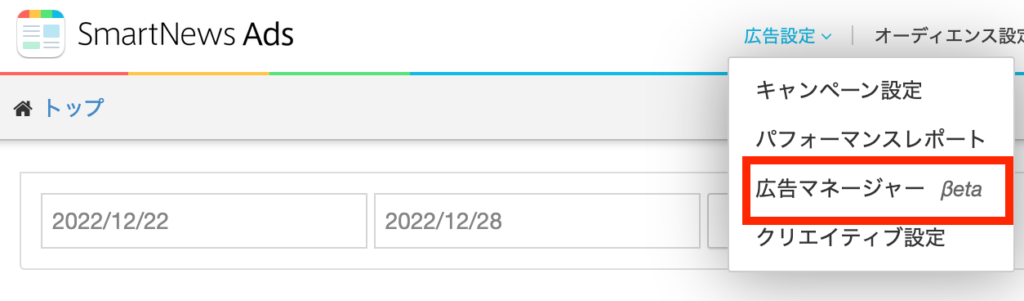
From the top menu, choose [広告設定] (Ad settings) from [広告マネージャーβeta] (Ads Manager βeta)
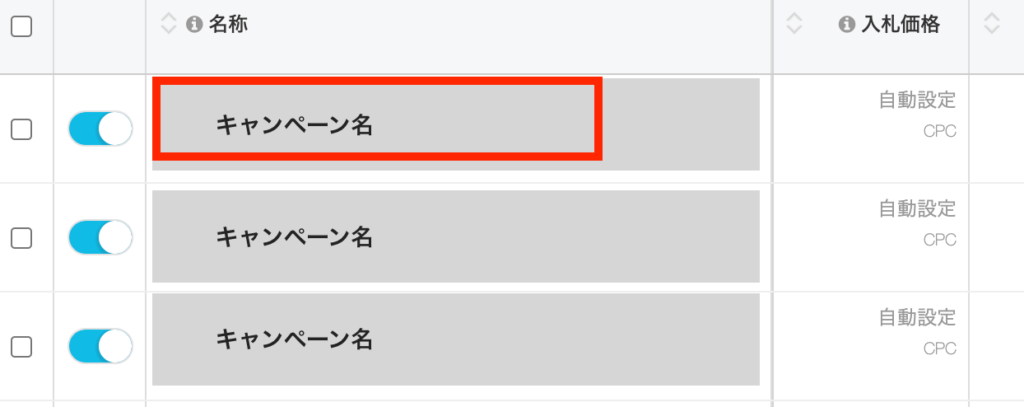
2 Select the campaign you want to check.
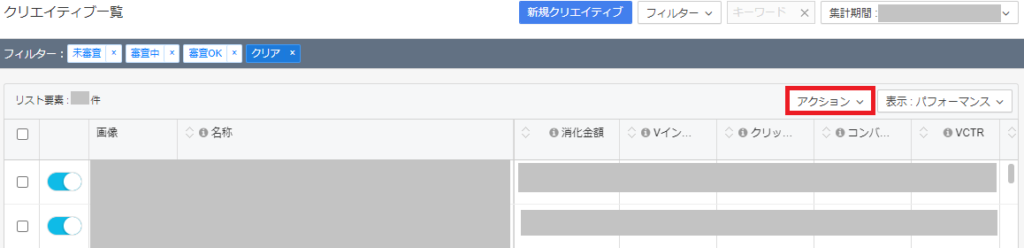
3 When the creative list is displayed, click [アクション] (Actions).
4Click [CSVエクスポート] (Export CSV).

5 The creative ID will be listed in the downloaded CSV file.