

Importing ads in bulk from a ZIP file
Ads Manager lets you easily import ads together with their media file from a ZIP file.
What you’ll need
- A file containing all your ads’ settings as comma separated values (CSV)
- Your ad image files
Preparing your CSV file
The CSV template includes all the required columns with example values for your reference.
Below you can see a list of required columns and their explanations.
Columns and values
This table describes the column headers and valid values you’ll need to include in your CSV file.
| Column header | Description | Data type | Valid values | Example | Required? |
|---|---|---|---|---|---|
| Object Type | The type of object to be created. | String | AD | AD | YES |
| Ad Group ID | ID of the ad group under which your ads will be created. | Number | 1234567 | YES | |
| Name | The name used to keep track of your ad in Ads Manager. This won’t be visible to SmartNews users. | String | Example ad name | YES | |
| Configured Status | Enter ACTIVE to enable delivery for this ad. Use PAUSED to prevent this ad from running. | String | ACTIVE PAUSED | ACTIVE | YES |
| Landing Page URL | The address of the website users will visit when clicking the ad. | String | https://www.smartnews.com | YES Leave blank for App Promotion campaigns | |
| Call To Action Label | The chosen label for the call to action button to use on the ad. If you don’t wish to use a call to action button, you can leave this column blank. | String | BOOK_NOW START_BOOKING CONTACT_US CALL_US REGISTER SIGN_UP SHOP_NOW START_ORDER SEE_MORE LEARN_MORE WATCH_MORE REPLY APPLY_NOW REQUEST_CATALOG RESPOND_TO_SURVEY PLAY_GAME USE_APP DOWNLOAD INSTALL LAUNCH_APP | LEARN_MORE | NO (can be left blank) |
| Impression Measurement Vedor Type | Enter if you use CM360/DCM or DAR for impression tracking. Only supported on Awareness campaigns. | String | DAR DCM | DAR | NO (can be left blank) Required if Impression Measurement URL value is entered. Use only for Awareness campaigns. |
| Impression Measurement URL | Enter if you use CM360/DCM or DAR for impression tracking. Only supported on Awareness campaigns. | String | https://ad.doubleclick.net/ddm/trackimp/ | NO (can be left blank) Required if Impression Measurement Vendor Type value is entered. Use only for Awareness campaigns. | |
| Format Type | Specify the ad type: Image or Carousel format. | String | IMAGE CAROUSEL | IMAGE | YES |
| Headline | Text shown to SmartNews users as your ad’s headline copy. | String | Example headline copy | YES | |
| Description | Text shown to SmartNews users as your ad’s body copy. | String | Example body copy | Required for IMAGE ads | |
| Sponsored Name | The name of the advertiser of service/brand running the ad. This is visible to users. | String | SmartNews | YES | |
| Image File Path 1:1 | Specify the directory path and filename of the image file to use for this ad. Images can be on the same level as the CSV file or in a custom subdirectory. | String | image.png or ad images/image.png | Required for IMAGE ads | |
| Image File Path 1.91:1 | Specify the directory path and filename of the image file to use for this ad. Images can be on the same level as the CSV file or in a custom subdirectory. | String | image2.png or ad images/image2.png | Required for IMAGE ads |
- Make sure your CSV file is in UTF-8 format and has a .csv extension.
- Excel file format (XLS, XLSX) aren’t supported at this time. If working in Excel, be sure to save your spreadsheet as comma separated values before uploading.
- You can upload up to 150 ads at once.
- Make sure your ad images conform to the SmartNews creative requirements
Preparing and uploading your ZIP file
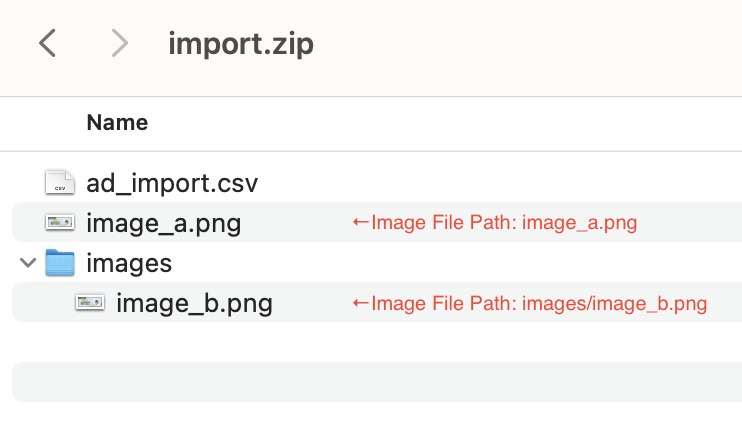
Once your CSV file is ready, bundle it together with your image files in a ZIP file. Image files can be on the same level as your CSV file, or in their own subdirectory in the ZIP file.
If using a subdirectory for your image files, use a relative file path in your CSV file. For example, if you have your image file in an “images” folder next to your CSV file, entering images/image_b.png in your CSV file will allow your images to be read.
Uploading your files
1On the Ads tab, select Import ads

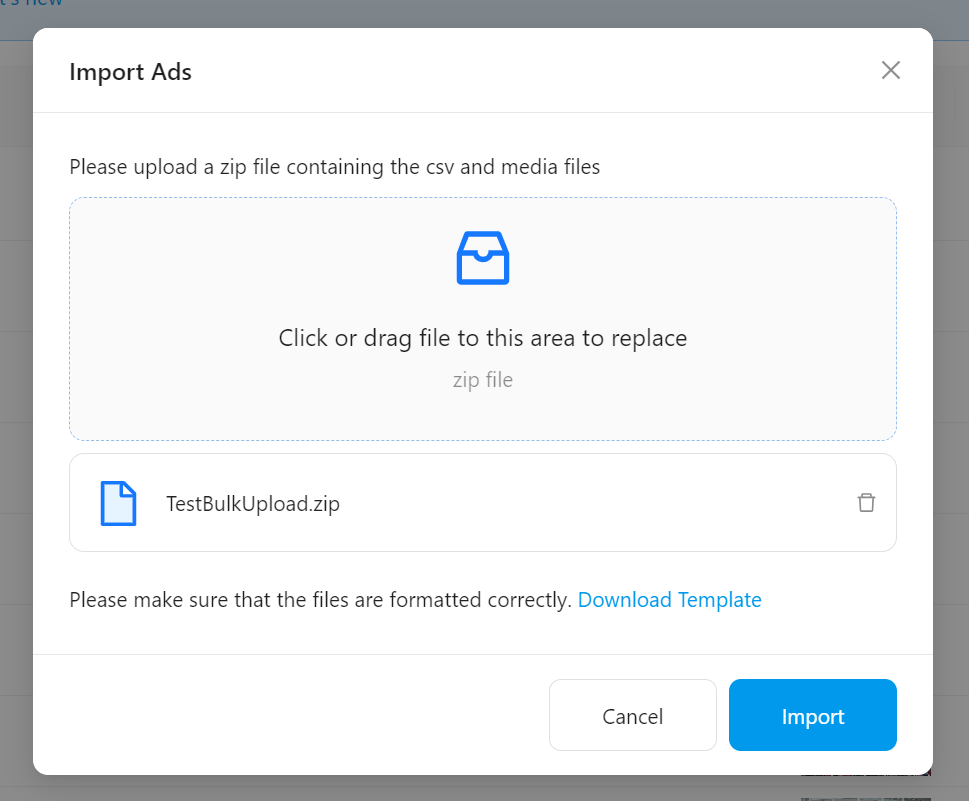
2Click to select your ZIP file or drag and drop it in the area shown. Your file should appear below. Click Import to upload your ads.
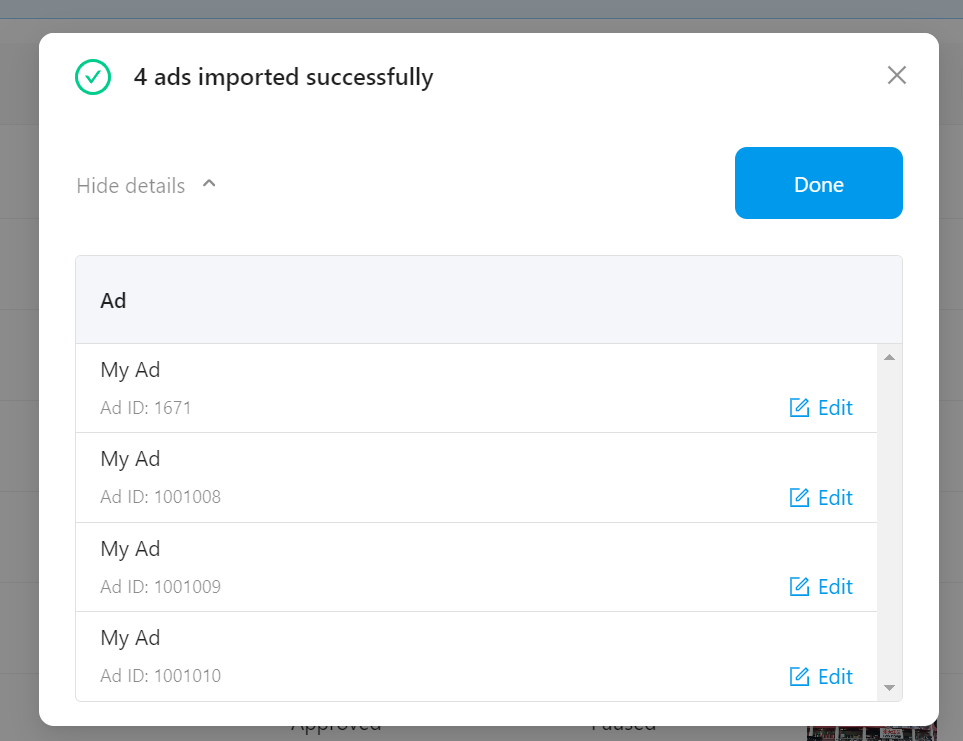
3If there are no issues with your CSV file, SmartNews will add or update the ads in your file as specified.
Bulk uploading carousel ads
Carousel ads can be bulk uploaded from CSV files, just like regular image ads. Keep in mind a few key differences when preparing your carousel images and caption text in your ZIP file.
You can include carousel ads alongside regular image ads in the same CSV file.
CSV format
Each carousel ad requires:
- 3–10 carousel card images (1:1, JPG, GIF, or PNG)
- 3–10 card captions (5–50 characters)
- Headline (10–70 characters)
- Sponsor name (22 characters max)
- Landing page URL
Columns specific to carousel ads
Note that carousel images require images in a separate column than the standard Image File Path 1:1 column. Make sure you specify an image file path in the Card {n} Image Path columns instead.
Ensure that:
- The file has no more than 150 rows.
- The file includes only IMAGE or CAROUSEL type ads. VIDEO type ads are currently not supported.
- The file is not over 1 MB.
| Header | Example value | Note |
|---|---|---|
| Format Type | CAROUSEL | Specify carousel format |
| Headline | <your headline for the carousel ad> | The headline copy that appears above the carousel cards |
| Card 1 Caption | <your caption for card 1> | Text that appears below each carousel card |
| Card 1 Image Path | folder\card_1.jpg | The directory path relative to the CSV file of the first card image, or if the file is in the same directory as the CSV file, just the image’s filename |
| Card 2 Caption | <Same as above for all carousel cards> | You can add up to 10 cards per CSV file. |
| Card 2 Image Path | <Same as above for all carousel cards> | |
| ... | ... |
FAQ
Errors
The following reasons might prevent you from uploading your ads:
- If your CSV file contains an invalid header or value. (Check the template for examples)
- If the included media files are not in a valid image format (JPEG or PNG).
- If your file attempts to add too many items to a single campaign or ad group. A campaign can hold up to 1,000 ad groups and each ad group can hold up to 100 ads.
- If the ZIP file is over 100 MB, or the CSV file is larger than 1 MB or contains more than 51 rows.
- If any of the filenames contain multi-byte characters (such as Devanagari or Chinese). Please only use alphanumeric characters in your CSV, directory, and ZIP file names. The filename must also be at least 3 characters long.
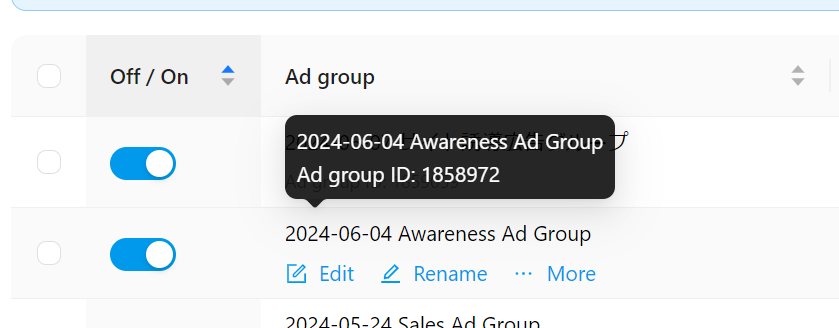
Where can I find my ad group IDs?
You can see ad group IDs by mousing over them in the main tabs.
Q:The text in my uploaded ads is garbled.
A: Make sure your CSV file is saved in UTF-8 format.
Q: Do I have to use the latest CSV template when uploading carousel ads?
A: We recommend using the latest template whenever you upload a new set of ads.
Older CSV files based on previous templates are backwards compatible, meaning you can always use them to upload IMAGE type ads.
CAROUSEL format ads, on the other hand, require newer columns such as Card {n} Caption and Card {n} Image Path, so make sure to check the newer template for the correct column headings and examples.