

Overview
SmartNews Business Manager gives you direct control over your organization’s accounts and user management without having to talk to a sales rep. Here’s an overview of the main web interface to get you started.
Managing users
Business Manager supports four business-level roles and two account-level roles.
Business-level roles
These roles apply at the business account level and govern user management and billing functions.
Business Admin
- Have full access and control over the business account
- Can add and remove users and modify permissions
- Assigned to the account creator after signup by default
Operation Admin
- Similar to Business User, but has broad view-only access to the business account
- Can view user and ad account lists but can’t make changes
Finance Admin
- Specialized role for self-serve business accounts that pay by credit card
- Similar to Operation Admin but has access to the Billing & Payments settings page
Business User
- Limited permission set for ad account operations
- No control over user permissions or ad account creation and assignment
- Can only view and manage assigned ad accounts
Developer Admin
- Special access role for managing developer apps
- No access to user or account management screens
- Can register new developer apps without restrictions
Business-level permissions compared
| Function | Business Admin | Operation Admin | Finance Admin* | Business User | Developer Admin** |
|---|---|---|---|---|---|
| View ad accounts tab | YES | YES | YES | YES (assigned ads only) | NO |
| Add and modify user roles | YES | View-only | View-only | NO | NO |
| Assign ad account access to users | YES | View-only | View-only | NO | NO |
| Access Billing & Payments settings | YES | NO | YES | NO | NO |
| Create ad accounts | YES | NO | NO | NO | NO |
| Manage developer apps | YES | View-only | View-only | NO | NO |
| Add new developer apps** | NO | NO | NO | NO | YES |
*Only available to self-serve billing accounts
**Users with any role can register new developer apps if our support team assigns them the Developer Admin role.
Ad account-level roles
Ad account-level roles are permissions that apply only to a user’s assigned ad accounts. For example, a Finance Admin at the business level has full control over billing and payment settings. If assigned the Analyst role for specific ad accounts, they can view campaign performance and analytics for those accounts but cannot modify ad targeting or copy.
Analyst
- Have broad view-only access to ad accounts
- Can’t create or modify campaigns
- Can view account insights and download performance reports
Operator
- Has full control over ad account campaigns and their contents
- Full access to Insights and reports
Ad account-level permissions compared
| Function | Operator | Analyst |
|---|---|---|
| Access assigned ad accounts | YES | YES |
| View account Insights page | YES | YES |
| View and download campaign reports | YES | YES |
| Create and modify Pixels and events | YES | NO |
| Create and modify campaigns, ad groups, and ads | YES | NO |
| Create and modify custom audiences | YES | NO |
Viewing users
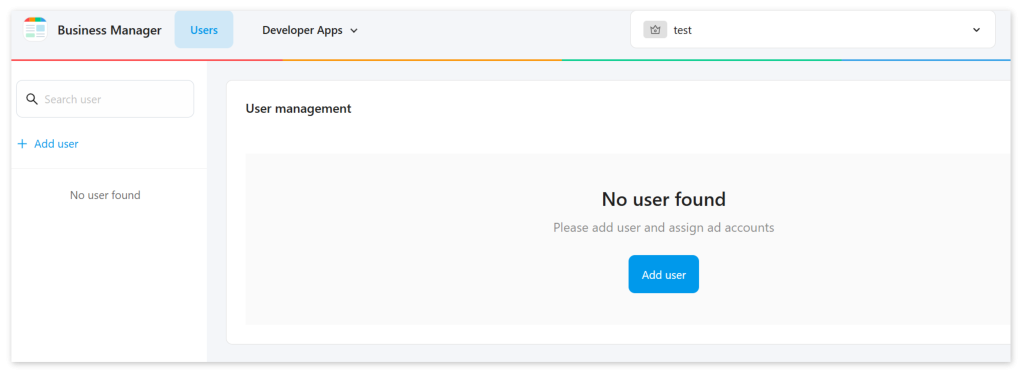
Users who have access to your organizations’ ad accounts can be viewed from the [Users] tab. Added users are listed under the left-hand column.
Add users
1Click [+ Add user].
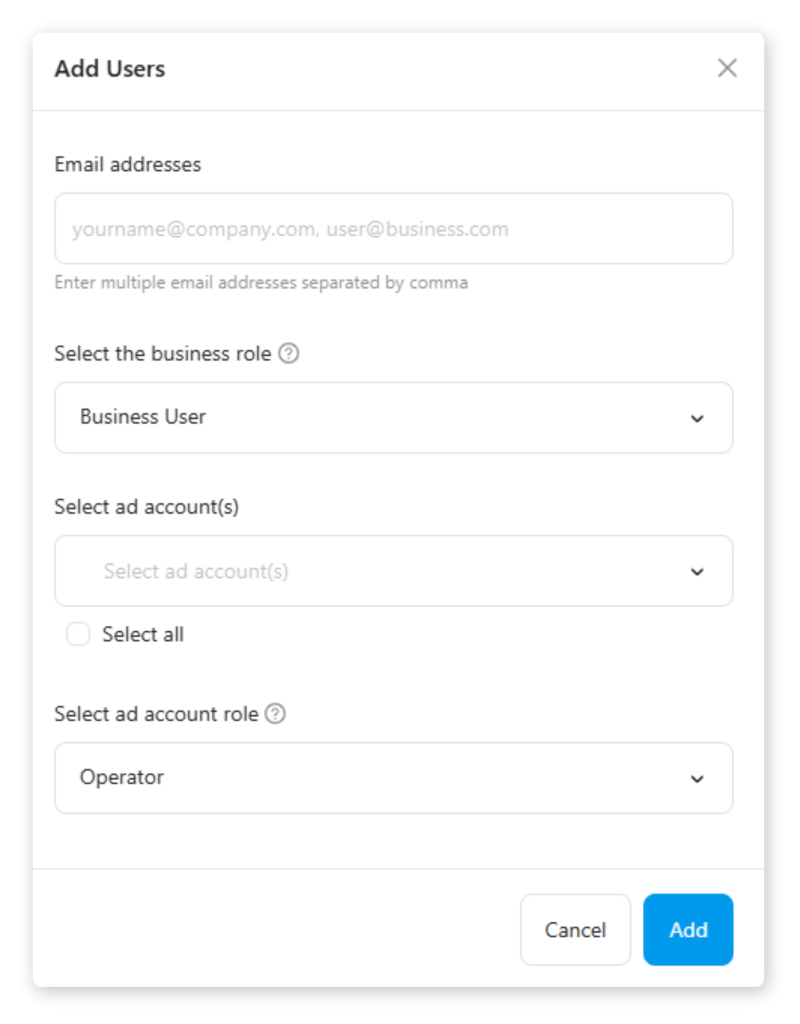
2To add several users at once, enter their email addresses separated by a comma (,).
3To make the added user(s) business admins. Check the box next to “Add as business admin”. Business admins have full control over all ad accounts and users assigned to the business, including user assignment privileges.
4For non-admin operators, select which ad account(s) the operators will be able to access.
Removing users
1Select the user you wish to modify from the left-hand column on the [Users] tab.
2Select [Remove user from business] in the top-right corner.
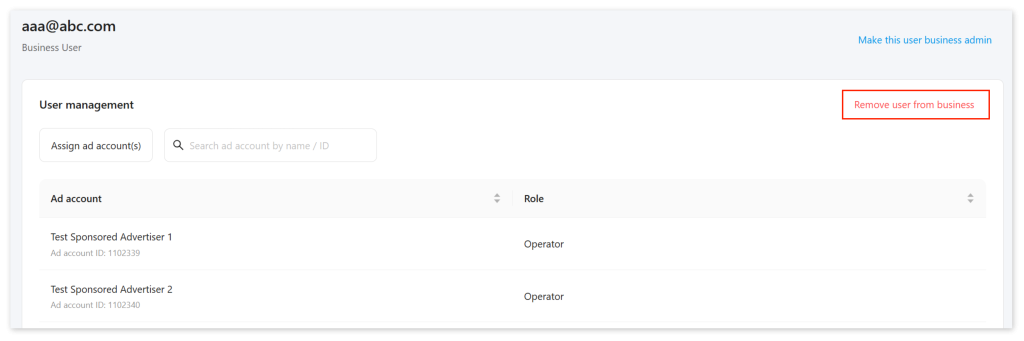
※Removing a user immediately blocks their access from all their assigned business accounts.
Reassigning users to different ad accounts
1To limit a user’s ad account access, hover over the ad account name in the list and click [Remove access].
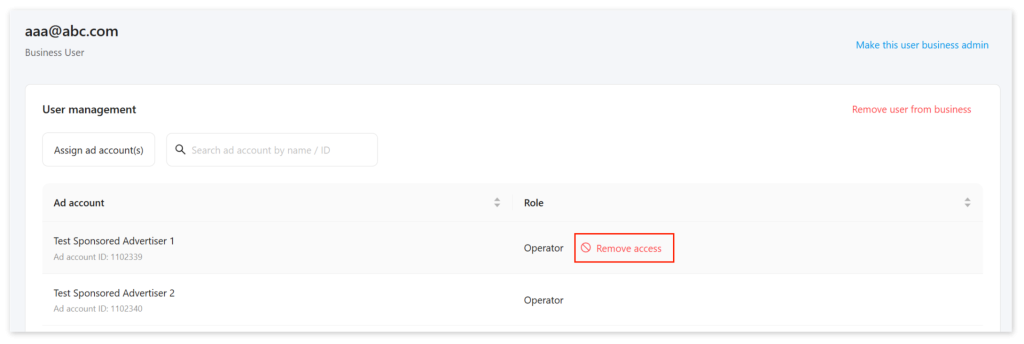
2To assign a new ad account permission to the user, click [Assign ad account(s)] in the top-left corner.
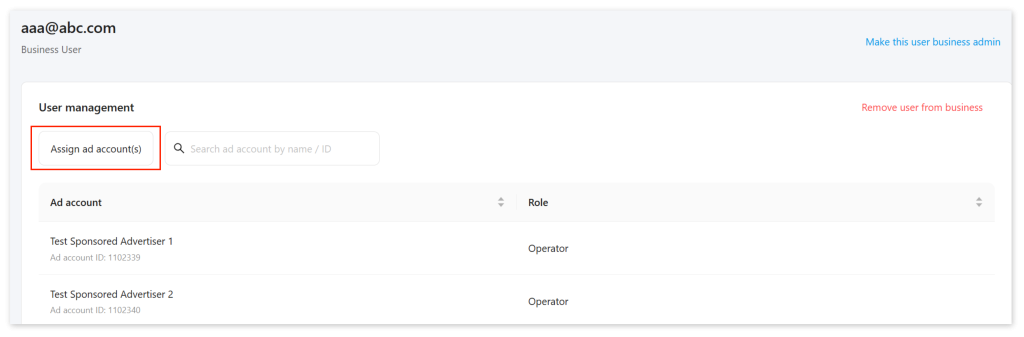
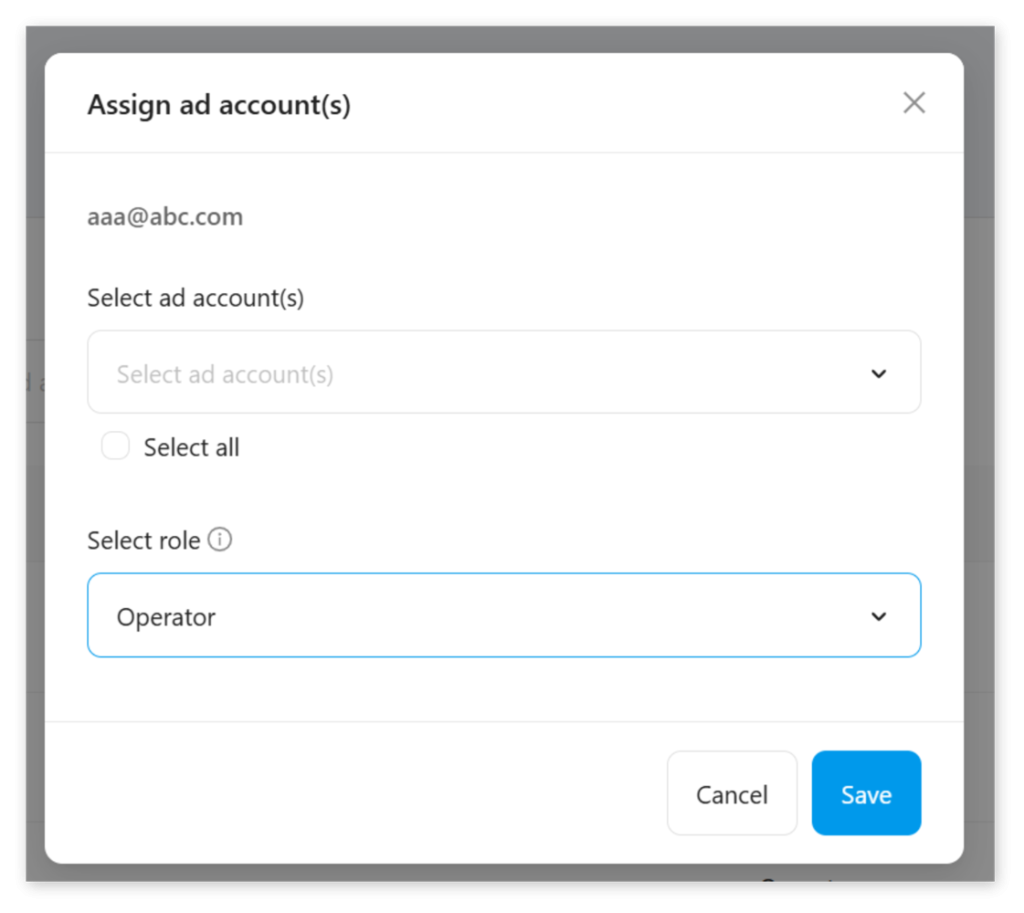
3Select which ad accounts to grant access to from the drop-down list, followed by [Save]. Changes to user permissions should take effect immediately.
Managing ad account access from [Ad Accounts] tab
You can also modify user permissions by selecting an ad account from the left-hand column under [Ad Accounts].
1Select the relevant ad account from the left-hand column.
2Mouseover a user from the user list to remove their access.
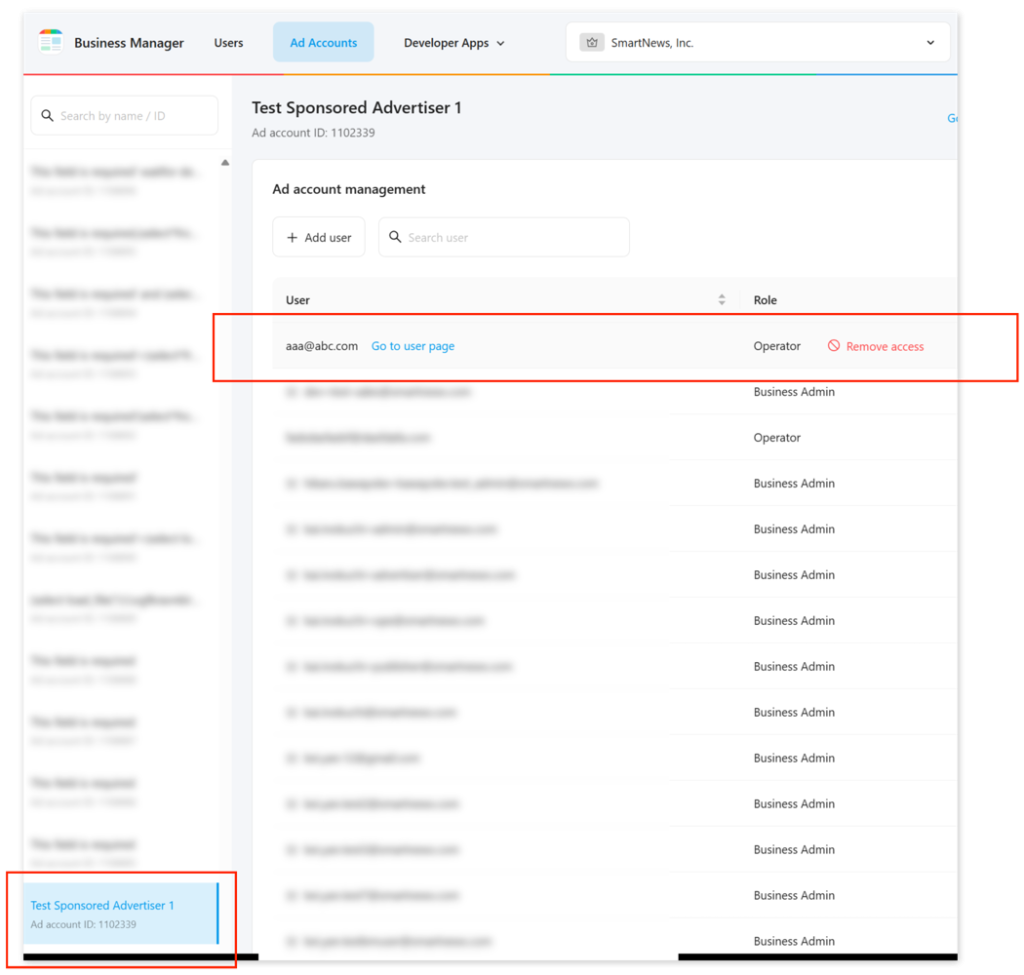
3To invite a new user to the ad account, click [+ Add user]. To assign an existing user to the ad account, search for the user’s email address from the [Users] tab.
Managing developer apps
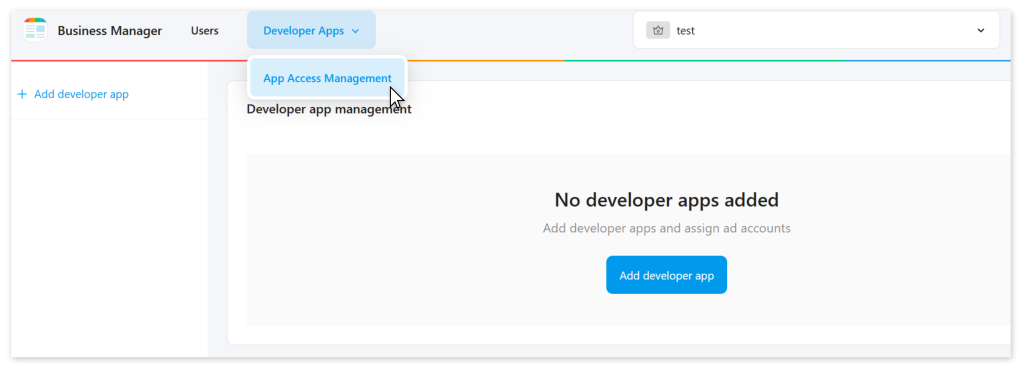
If your workflow involves an in-house app developed using a SmartNews API, you can connect it with your business account and assign it to ad accounts from the [Developer Apps] drop-down tab.
For more on using the SmartNews Marketing API, please refer to the help article below.
Get started with the SmartNews Marketing API >
Notes and limitations
When using Business Manager, please note the following limitations:
- Only business admins can add or remove users from the business account.
- Each user must have a unique email address – the same email cannot be used for multiple user accounts.
- Changes to user permissions take effect immediately and cannot be scheduled.
- Once a user is removed, they must be re-added as a new user if access needs to be restored.
- Developer apps can only be connected to one business account at a time.
User and admin limits
By default, a business account can hold up to 10 business admins and up to 100 users in total.
FAQ
Q:What happens when I remove a user from Business Manager?
A:When you remove a user, their access to all assigned business accounts is immediately blocked. To restore access later, they must be re-added as a new user.
Q:Can the same email address be used for multiple user accounts?
A:No, each user must have a unique email address – the same email cannot be used for multiple user accounts.
Q:How many developer apps can I connect to my business account?
A:Developer apps can only be connected to one business account at a time.
Q:What’s the difference between business admins and operators?
A:Business admins have full control over all ad accounts and users assigned to the business, including user assignment privileges. Regular operators can only access the specific ad accounts they have been assigned to.